1. Verify Your Internet Bandwidth For not have any iptv Buffering
8K video requires massive amounts of data. While 4K usually needs around 25–50 Mbps, 8K streams often require a stable 100 Mbps or higher.
- Action: Run a speed test. If your speed is below 100 Mbps, you may need to contact your ISP for an upgrade or ensure no one else on your network is downloading large files.
2. Switch to an Ethernet Connection
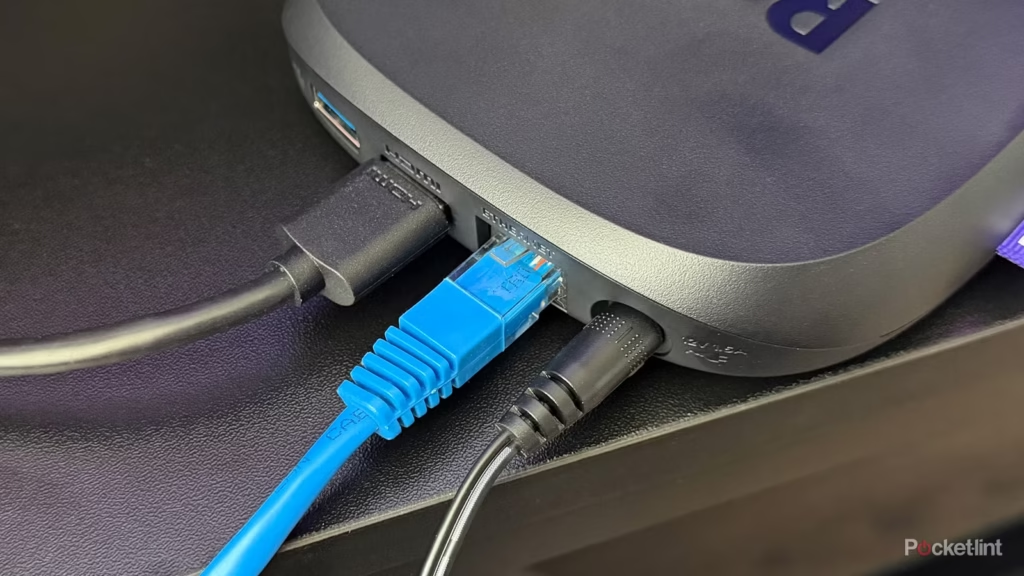
Wi-Fi is convenient, but it is prone to interference and “jitter” (tiny fluctuations in timing). For QUEBEC IPTV , wireless signals often struggle to keep up.
- The Fix: Use a Cat6 or Cat7 Ethernet cable to connect your streaming device directly to your router. This provides a dedicated “highway” for your data, bypassing the instability of Wi-Fi.
3. Optimize Your Quebec IPTV Player & Buffer Settings
Sometimes the issue isn’t the internet, but how your app handles the data.
- Increase Buffer Size: Go into your IPTV app settings (such as TiviMate or IPTV Smarters) and look for “Buffer Size” or “Cache.” Set it to Large or 5-10 seconds. This allows the app to download a “safety net” of video ahead of time.
- Hardware Acceleration: Ensure “Hardware Decoding” is enabled in the app settings to allow your device’s processor to handle the 8K rendering more efficiently.
4. Use a High-Performance Streaming Device
Not all hardware can decode 8K video smoothly. If you are using an older smart TV app or a budget streaming stick, the processor may be overheating or bottlenecking.
- Recommendation: Use devices with powerful GPUs and at least 4GB to 16GB of RAM to ensure the hardware can keep up with the high bitrate.
5. Clear Cache and Manage Background Apps
Over time, streaming devices accumulate “junk” files that slow down performance.
- Action: Regularly go to your device settings and Clear Cache for your IPTV app. Also, force-close any background apps (like Netflix, YouTube, or Games) that might be stealing RAM and bandwidth.
6. Check Your VPN Connection
If your ISP is “throttling” (purposely slowing down) your IPTV traffic, a VPN can help. However, a slow VPN server will cause buffering.
- The Fix: If you use a VPN, connect to a server that is physically closest to you and ensure you are using a fast protocol like WireGuard.
7. Use “Anti-Freeze” Optimized Servers
Not all servers are built to handle the massive load of an 8K stream.
The Tip: Look for services that specifically mention Load Balancing and Anti-Freeze technology. A global server network ensures that you are connecting to a server physically closer to your location, which reduces “latency” (the time it takes for data to travel), a major cause of 8K buffering.
8. Check for Router Quality of Service (QoS)
If other people in your house are gaming or downloading while you stream, your 8K data might be getting pushed to the back of the line.
The Tip: Log into your router settings and look for QoS (Quality of Service). You can prioritize your streaming device (like your Smart TV or Android Box) so that the router always gives it the maximum available bandwidth first.
Summary Checklist
| Problem | Solution |
| Weak Signal | Switch from Wi-Fi to Ethernet Cable |
| Slow Speeds | Ensure 100 Mbps+ download speed |
| App Lag | Increase Buffer Size in Settings |
| Overloaded Device | Clear Cache and close background apps |
Final Tip: If you’ve tried everything and buffering persists, it may be an issue with the provider’s server capacity. Always ensure you are using a service specifically optimized for high-bitrate 8K delivery.
 Visit quebec-iptv.org now to claim your 24-hour trial and see the difference!